



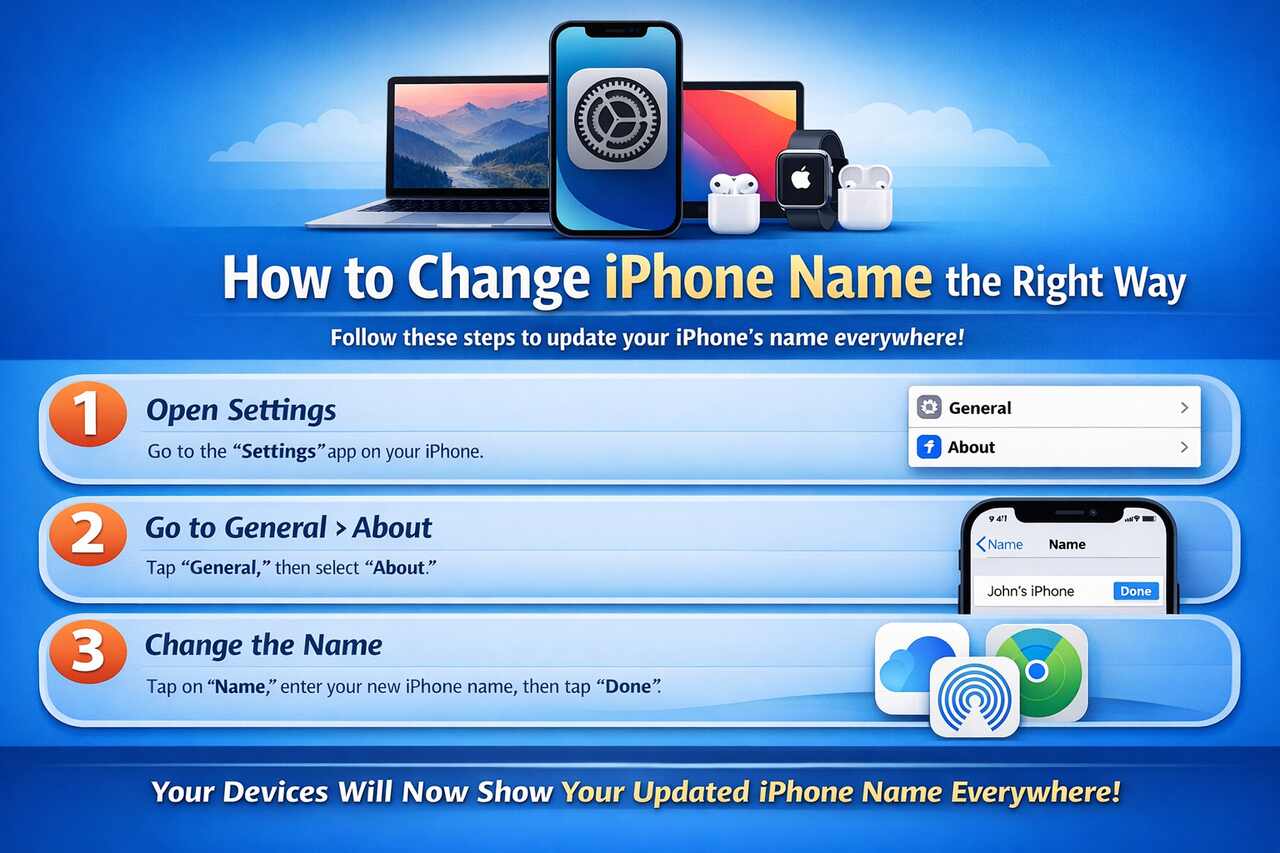
Renaming an iPhone affects how the device is identified across Apple services, including iCloud, AirDrop, Bluetooth, and Personal Hotspot. Whether you’re personalizing your phone, securing it, or managing multiple Apple devices, understanding how the iPhone name syncs through Apple’s ecosystem is crucial. A properly named iPhone helps users differentiate between devices on shared networks, in file transfers, or when managing hardware linked to an Apple ID.
What is your iPhone name used for?
Your iPhone name is the system-level identifier visible to other devices and Apple services such as iCloud, AirDrop, and Bluetooth. This name distinguishes your device on networks, appears in iTunes/Finder backups, and plays a role in Personal Hotspot and AirPlay. Apple’s iOS uses the device name to organize and sync data accurately within its ecosystem, ensuring devices remain correctly registered to a single Apple ID.
Where does the iPhone name appear?
The iPhone name appears in several key locations within Apple and third-party ecosystems:
-
AirDrop: Other Apple devices detect your iPhone by this name when sharing files.
-
Bluetooth: Devices such as speakers, headphones, and cars display this name during pairing.
-
iCloud and Apple ID: Your iPhone name appears in the list of registered devices under your Apple ID profile.
-
Find My iPhone: The Find My network uses your iPhone name to identify your device.
-
Personal Hotspot: Other users see your iPhone name as the SSID (Wi-Fi name) when connecting.
-
CarPlay & AirPods: These accessories associate settings and behaviors based on your iPhone’s name.
How does it affect AirDrop, Bluetooth, and iCloud?
AirDrop filters nearby devices based on the visible device name, making recognition easier in crowded environments. Bluetooth accessories remember previously connected device names for automatic reconnection. In iCloud, a unique name helps Apple distinguish between different devices associated with the same Apple ID, especially when syncing messages, backups, or settings. Changing the name updates visibility across most services, enhancing identification and personal branding.
How to change iPhone name on iOS 17 and later?
iOS 17 streamlines the device renaming process through a simple navigation flow. Users can access this setting via the General > About section in the Settings app. The name update reflects across Apple services, often without a reboot.
What are the steps in Settings to rename your iPhone?
Follow these precise steps to change your iPhone name in iOS 17 or later:
-
Open the Settings app.
-
Tap on General.
-
Select About.
-
Tap on Name.
-
Enter the new desired name.
-
Tap Done on the keyboard.
The new name instantly applies across system settings. No additional confirmation step is required.
Do you need to restart your phone after renaming it?
Restarting is not required for the name change to take effect. The new iPhone name updates immediately in iOS and begins propagating through services like AirDrop, iCloud, and Bluetooth. However, if the name doesn’t show on external devices right away, temporarily toggling Bluetooth or Wi-Fi off and back on may help force visibility refresh.
How to change your iPhone name using a Mac or PC?
Renaming your iPhone can also be done through desktop platforms. Finder on macOS (Catalina and later) and iTunes on Windows or older macOS versions allow users to update the device name when connected via USB.
Can you rename your iPhone via Finder or iTunes?
Yes, both Finder and iTunes allow you to rename your iPhone:
-
On Mac (macOS Catalina or later):
-
Connect your iPhone via USB.
-
Open Finder.
-
Select your iPhone from the sidebar.
-
Click on the device name at the top of the window.
-
Enter the new name and press Return.
-
-
On Windows/macOS Mojave or earlier:
-
Open iTunes after connecting your iPhone.
-
Click on the iPhone icon.
-
Click once on the iPhone name at the top.
-
Type the new name and press Enter.
-
These methods are ideal when managing multiple devices or using a computer for synchronization.
How to update iPhone name across iCloud and Apple ID?
The Apple ecosystem syncs your iPhone’s name through your Apple ID, appearing under device lists in iCloud, Apple ID settings, and Find My iPhone. Name changes on the device push to iCloud servers, ensuring system consistency.
Does the iPhone name sync with your Apple ID?
Yes, the iPhone name automatically syncs with your Apple ID and iCloud. Once renamed, the updated name becomes visible in the Apple ID section under Settings > [Your Name] > Devices. It also reflects in iCloud.com > Account Settings, aiding device distinction for security and backup management.
How to verify the name change on all Apple devices
To confirm propagation:
-
On another Apple device: Open Settings > [Your Name] > Devices.
-
On iCloud.com: Visit the Account Settings page and scroll to Devices.
-
In Find My app: Check the device label shown on the map.
The updated name may take a few minutes to sync depending on network conditions.
Why should you change your iPhone name?
Renaming an iPhone improves security, organization, and personalization. The default naming convention, such as “John’s iPhone,” can reveal personal identity or result in device confusion when multiple iPhones are nearby.
Is it a security or privacy concern?
Yes, using your real name in a public Wi-Fi or AirDrop environment could expose personal information. Renaming the iPhone with a non-identifiable or generic name prevents social engineering attacks or tracking attempts through Bluetooth or Wi-Fi beacons.
Does it help when managing multiple Apple devices?
Yes, users with several Apple products benefit from unique naming. For example, differentiating between “Work iPhone 15 Pro” and “Personal iPhone SE” simplifies device selection for AirDrop, backup restores, and when viewing Apple ID-linked hardware.
Common issues when changing iPhone name
Despite the simplicity of renaming, some users experience delays or visibility problems. These issues often relate to Bluetooth cache, iCloud sync lags, or third-party memory settings in accessories.
Why isn’t the new name showing in Bluetooth or AirDrop?
Bluetooth caches device names. Re-pairing accessories or toggling Bluetooth off/on refreshes name visibility. In AirDrop, nearby devices might still cache the old name temporarily. Restarting or resetting network settings can solve persistent issues.
How to fix iCloud sync delays or naming conflicts
Sync issues often resolve with patience. For persistent problems:
-
Log out and back into iCloud.
-
Restart the device.
-
Ensure the latest iOS version is installed.
-
Avoid using duplicate names across devices.
Name conflicts occur when multiple devices share the same name under the same Apple ID, creating confusion in iCloud or backup lists.
How to personalize your iPhone name (Best Practices)
Creating a memorable, secure, and functional device name blends practicality with creativity. Depending on context, names can be funny, professional, or coded to identify purpose without revealing identity.
Funny, professional, or purpose-driven naming ideas
-
Funny: “404 Device Not Found,” “iSurvived2025,” “The Callinator”
-
Professional: “iPhone15Pro-Admin,” “Marketing-iPhone,” “ClientSupport-iOS”
-
Purpose-Driven: “Travel-iPhone,” “FamilyHub-iOS,” “SecureComm-iPhone”
A thoughtful name improves recognition in AirDrop or iCloud, particularly in enterprise, school, or travel settings.
What characters are allowed or not recommended?
iOS allows:
-
Letters (A–Z, a–z)
-
Numbers (0–9)
-
Spaces and symbols (e.g., dashes, underscores, emojis)
Avoid:
-
Special characters like slashes, pipes, or symbols that may not render properly in all systems
-
Excessive emojis (can disrupt visibility in some services)
-
Long names (limit to ~30 characters for readability)
How does renaming your iPhone affect connected apps and services?
Name changes affect how paired devices recognize the iPhone. Apple ecosystem accessories like AirPods, CarPlay, or HomePods may reference the original device name for quick connection or personalization.
Will your Hotspot or Bluetooth pairing break?
Wi-Fi Hotspot SSID changes immediately with the iPhone name. Devices already connected may need to reconnect under the new name. Bluetooth devices may prompt re-pairing if they rely on the device name for recognition.
Do AirPods or CarPlay remember old device names?
AirPods and CarPlay retain pairing preferences but update the visible name on the next connection. Users may need to forget and re-pair manually if confusion arises, especially in cars where iPhone names are logged in infotainment systems.
Device Name Visibility Across Apple Services
| Apple Service | Uses iPhone Name | Updates Automatically | Requires Manual Action |
|---|---|---|---|
| AirDrop | ✅ Yes | ✅ Yes | ❌ No |
| Bluetooth Pairing | ✅ Yes | ✅ Yes (some devices) | ✅ Reconnect may help |
| iCloud Devices List | ✅ Yes | ✅ Yes | ❌ No |
| Find My iPhone | ✅ Yes | ✅ Yes | ❌ No |
| Personal Hotspot | ✅ Yes | ✅ Yes | ✅ Reconnect if needed |
| CarPlay Systems | ✅ Yes | ❌ No (memory retained) | ✅ Manual rename in car |
A consistent device name across services avoids confusion, improves security, and enhances usability across Apple’s interconnected systems.
Conclusion
Changing your iPhone name is a small but powerful customization that impacts privacy, personalization, and ecosystem recognition. A properly named device helps avoid confusion, enhances discoverability across services like AirDrop or iCloud, and supports security best practices. Whether managed through iOS Settings or Finder/iTunes, the process is fast and effective. For users with multiple Apple products or shared environments, renaming ensures clarity, especially when syncing data across Apple ID or restoring backups. Regularly reviewing and updating device names is a practical habit for better digital hygiene.
FAQs
Q: Where can I find my iPhone’s current name?
A: Go to Settings > General > About > Name to view your iPhone’s current name.
Q: Why does my iPhone still show the old name in AirDrop?
A: AirDrop may cache old names. Toggle AirDrop or restart the device to refresh visibility.
Q: Will changing the name affect how others see my phone?
A: Yes, others will see the updated name when connecting via AirDrop, Bluetooth, or Hotspot.
Q: Can I use emojis or special characters in my iPhone name?
A: Yes, emojis and symbols are allowed, but avoid overly complex or unsupported characters.
Q: Is there a limit to how long the iPhone name can be?
A: Names are best kept under 30 characters for compatibility and display clarity.
Q: Does changing my iPhone name also change my Apple ID device name?
A: Yes, the device name updates automatically under your Apple ID and in iCloud.
Q: How often can I change the iPhone name?
A: There’s no limit; users can change the device name as often as desired.
Q: Can I give all my Apple devices unique names for easier identification?
A: Yes, using distinct names for each Apple device is highly recommended for easier management and syncing.
Read Also:


