



Sharing your location on an iPhone is a practical feature designed to improve safety, coordination, and real-time communication. Whether you want to let family members track your journey, meet friends faster, or share your whereabouts temporarily, Apple provides multiple native methods to do this securely. Understanding how each option works allows you to choose the most efficient and privacy-appropriate approach for every situation.
This guide explains how to share location on iPhone step by step using system settings, apps, and messaging tools available on devices running Apple software. Each method is explained clearly so you can act immediately, adjust permissions confidently, and stop sharing whenever needed.
Enable Location Services on iPhone
The first step to sharing your location is ensuring that Location Services are active on your iPhone. Without this setting enabled, no app or system feature can access your real-time position.
Open the Settings app, select Privacy & Security, then tap Location Services. Toggle Location Services on so your device can determine its position using GPS, Wi-Fi, Bluetooth, and cellular networks. This allows accurate and responsive location sharing across Apple apps.
Location Services also include app-level permissions. Each app can be configured to access your location Always, While Using the App, or Never. Adjusting these permissions ensures your location is shared only in contexts you approve, preserving battery life and personal privacy.
Share Location Using the Find My App

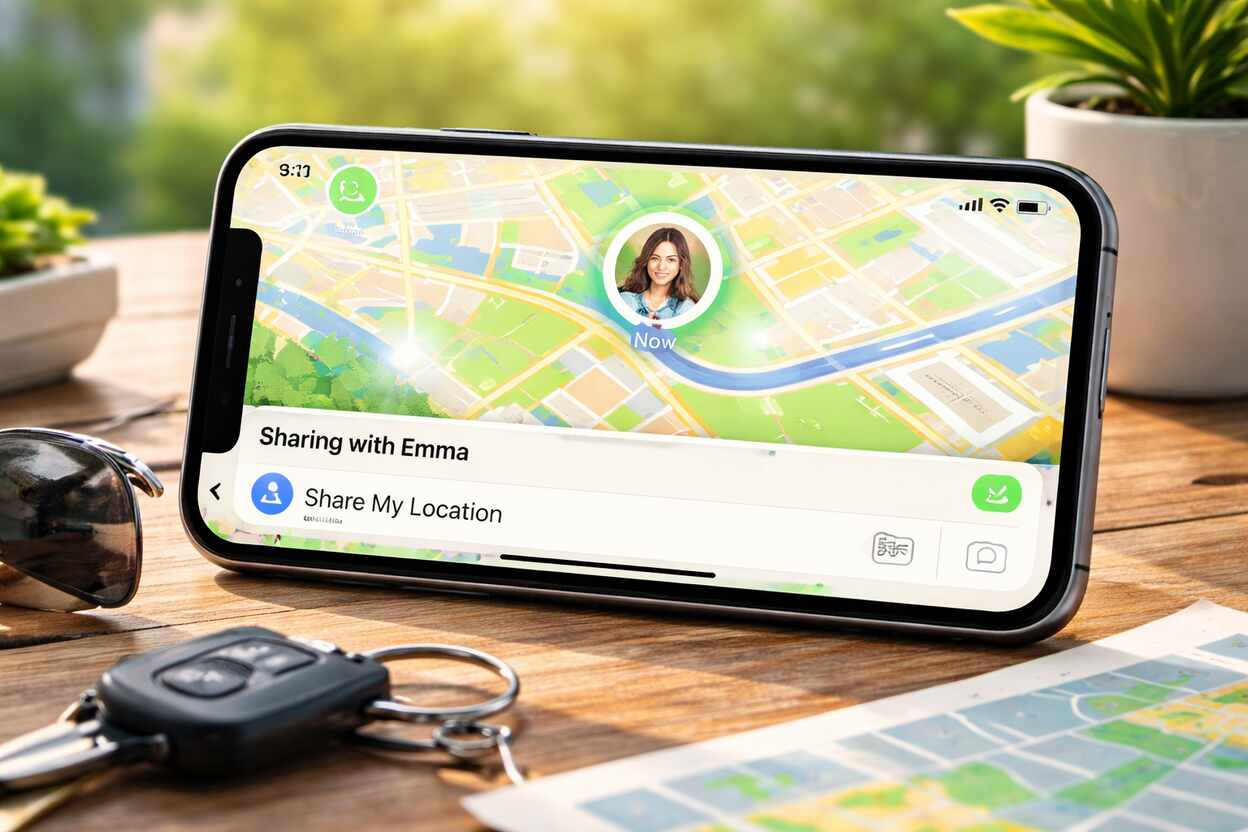
Sharing location through Find My is the most robust and continuous method available on iPhone. It is ideal for family members, partners, or trusted contacts who need ongoing access.
Open the Find My app, go to the People tab, and tap Share My Location. Choose a contact from your list and select how long you want to share your location. Options include one hour, until end of day, or indefinitely.
Find My works across all devices logged into your Apple ID, including iPad and Mac. You can stop sharing at any time by selecting the contact and tapping Stop Sharing Location. This method provides live updates and notifications when you arrive or leave specific places.
Share Location Through Messages App
Location sharing inside Messages is quick and conversational. It is best suited for short-term coordination, such as meeting someone or confirming where you are.
Open a conversation in Messages, tap the contact name at the top, and select Share My Location. Choose the sharing duration or send your current location as a static pin. The recipient receives a map preview directly in the chat.
This approach does not require Find My setup, but it works best between iPhone users using iMessage. You can manage or revoke shared locations directly from the conversation details at any time.
Share Location Using Apple Maps
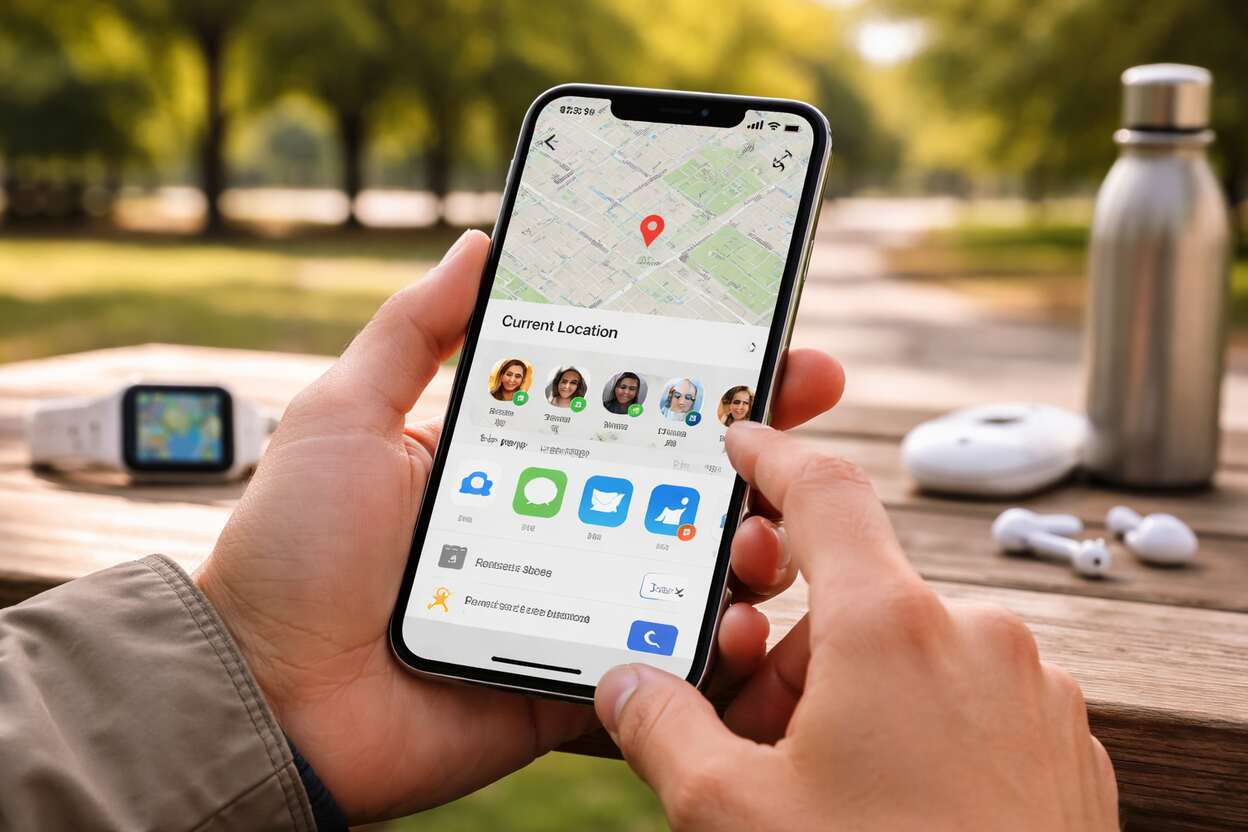
Apple Maps allows you to share your location while navigating, making it ideal for trips and commutes. This method focuses on ETA and route progress rather than constant tracking.
Start navigation to a destination in Apple Maps, swipe up on the navigation card, and tap Share ETA. Select a contact, and they will receive updates as you move, including arrival time and delays.
Once you reach your destination or end navigation, sharing stops automatically. This temporary and contextual sharing is useful when you want others informed without granting long-term access.
Related Article: iPhone 14 Pro Max vs iPhone 15 Pro Max: A Comprehensive Feature Comparison
Share Location Using Family Sharing
Family Sharing enables automatic location sharing between members of a shared Apple ID group. This method is commonly used by parents, guardians, or households managing multiple devices.
Open Settings, tap your Apple ID name, select Family Sharing, and enable location sharing for selected family members. Each person can see others’ locations in the Find My app.
Family Sharing respects individual privacy settings. Members can stop sharing their location independently, and notifications can be configured for arrivals, departures, or specific places like home or school.
Adjust Location Sharing Permissions
Managing permissions ensures that only trusted apps and people can see your location. This step is essential for maintaining privacy while using multiple sharing methods.
Go to Settings, open Privacy & Security, then Location Services. Scroll through the app list to review how each app accesses your location. You can change permissions instantly without affecting other services.
iOS also provides a Precise Location toggle. Turning it off shares an approximate area instead of exact coordinates, which is helpful for apps that do not require pinpoint accuracy.
Stop Sharing Location on iPhone
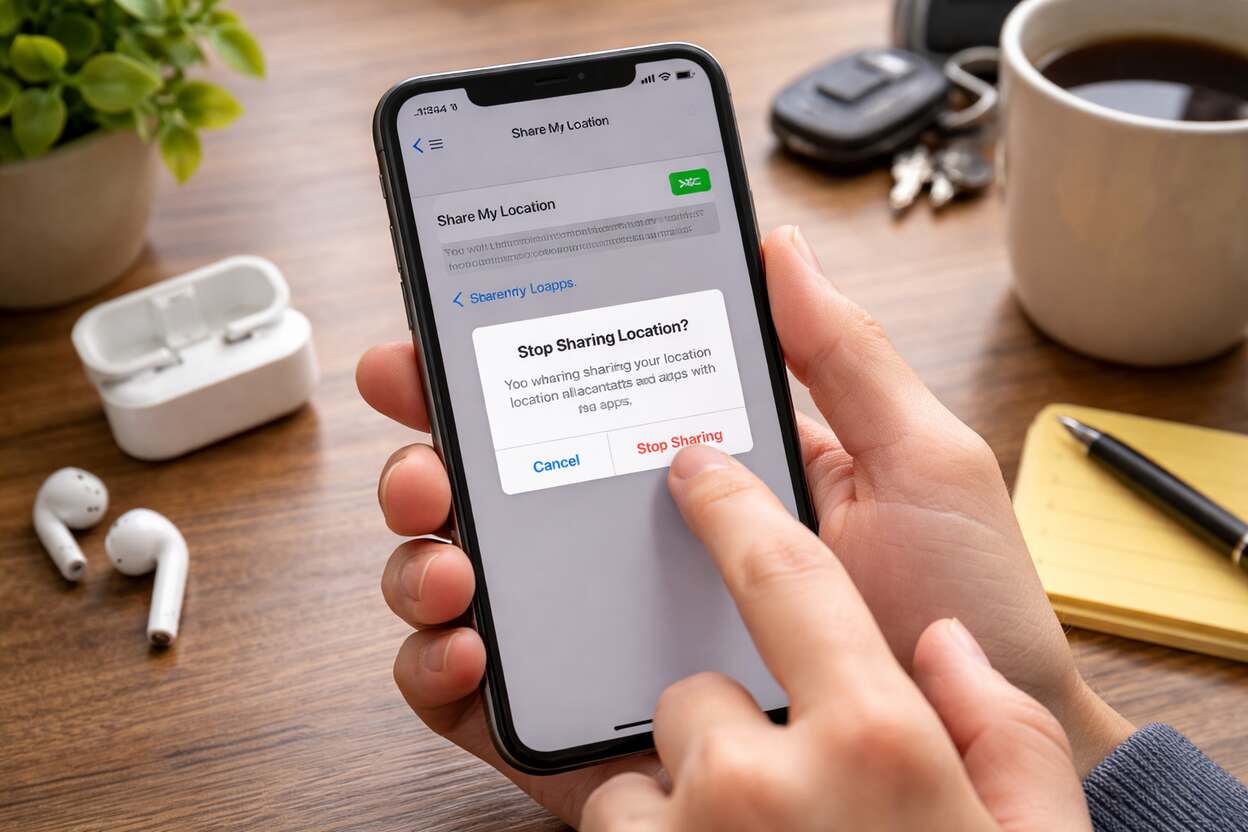
Stopping location sharing is as important as starting it. Apple allows immediate control across all sharing methods.
In Find My, select the person you are sharing with and tap Stop Sharing Location. In Messages, open the conversation details and disable sharing. In Family Sharing, toggle off location sharing for specific members.
You can also disable Location Services entirely, which halts all location access. This option is useful when traveling, conserving battery, or resetting privacy preferences.
Troubleshoot Location Sharing Issues
If location sharing is not working, the issue is usually related to settings, connectivity, or account configuration.
Ensure your iPhone is signed into the correct Apple ID and connected to the internet. Check that Location Services and Share My Location are enabled under your Apple ID settings.
Restarting the device, updating iOS, or re-adding contacts in Find My often resolves persistent issues. Keeping system software updated ensures compatibility with location features.
Compare iPhone Location Sharing Methods
| Method | Best Use Case | Duration Options | Live Updates |
|---|---|---|---|
| Find My | Family and trusted contacts | 1 hour, 1 day, indefinite | Yes |
| Messages | Quick coordination | Temporary or static | Optional |
| Apple Maps | Travel and navigation | Trip duration | Yes |
| Family Sharing | Household tracking | Continuous | Yes |
Key Location Sharing Settings at a Glance
| Setting | Location | Purpose |
|---|---|---|
| Location Services | Settings > Privacy & Security | Enables GPS access |
| Share My Location | Apple ID > Find My | Allows sharing with contacts |
| Precise Location | App permissions | Controls accuracy |
| Stop Sharing | Find My or Messages | Revokes access |
Conclusion
Learning how to share location on iPhone gives you greater control over communication, safety, and coordination. Apple’s built-in tools allow flexible sharing options ranging from quick one-time updates to continuous real-time tracking. By understanding when and how to use Find My, Messages, Apple Maps, and Family Sharing, you can share your location confidently while maintaining privacy and security. Mastery of these features ensures your iPhone works not just as a device, but as a reliable companion in everyday life.
FAQs
Q: Can I share my location temporarily on iPhone?
A: Yes. Find My and Messages both allow time-limited sharing options such as one hour or until the end of the day.
Q: Does location sharing work if my phone is locked?
A: Yes. As long as the iPhone is powered on and connected, location updates continue in the background.
Q: Can I share my location with non-iPhone users?
A: Apple’s native tools work best with Apple devices. For non-iPhone users, third-party apps may be required.
Q: Does sharing location drain battery?
A: Continuous sharing can increase battery usage slightly, but iOS optimizes location updates to minimize impact.
Q: How accurate is iPhone location sharing?
A: Accuracy depends on GPS signal, network conditions, and whether Precise Location is enabled.
Q: Can I hide my exact location?
A: Yes. You can disable Precise Location for specific apps to share an approximate area instead of exact coordinates.
Read Next: How to Screen Record on iPhone – Step-by-Step Guide for Every iOS Version


